First Conversation
Overview
NeoCash is built around natural conversation. Instead of filling out forms or navigating complex menus, you simply describe your financial situation or ask a question. The AI handles the rest — organizing your goals, surfacing relevant context, and taking structured actions on your behalf.
This guide walks you through starting your first chat and understanding what happens behind the scenes.
Starting a New Chat
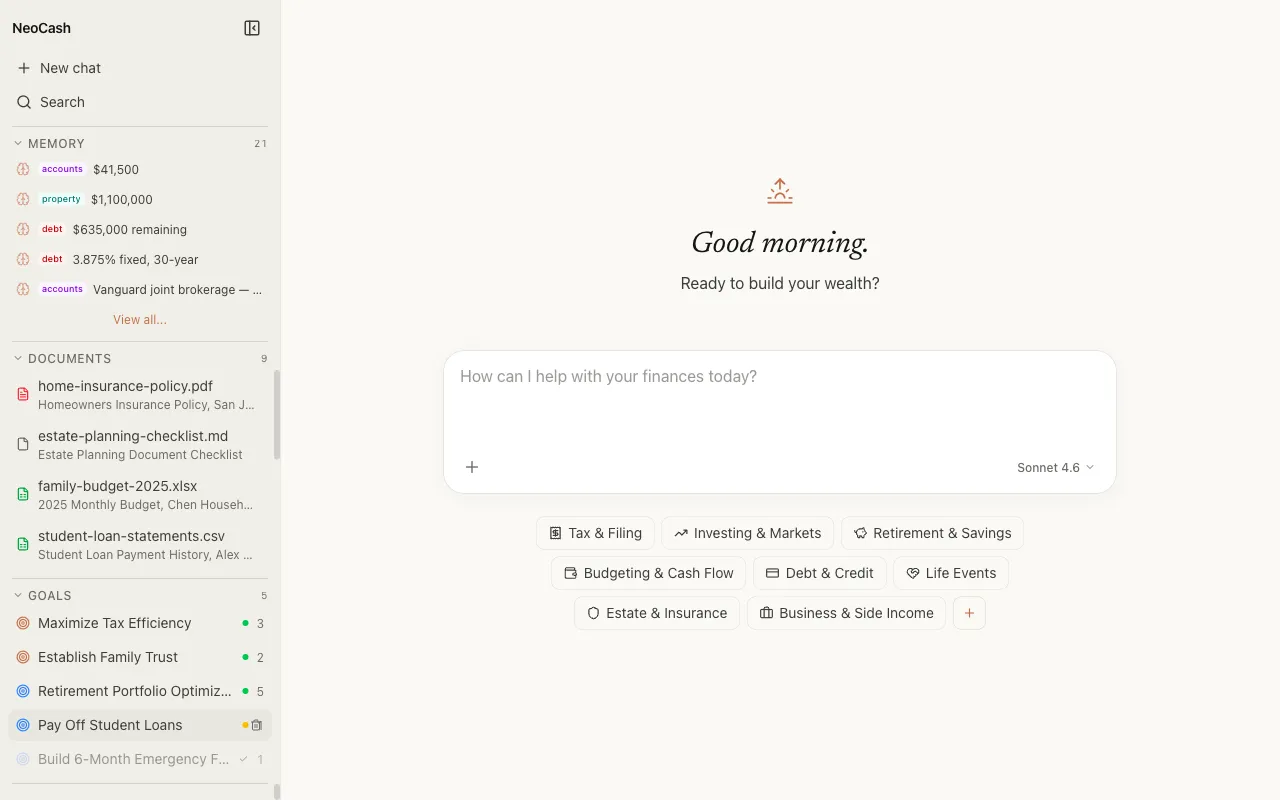
When you open NeoCash, you land on the chat interface. If this is your first time, you will see a greeting screen with a brief welcome message and a set of category tiles.
Click the New Chat button in the sidebar or simply start typing in the message input at the bottom of the screen. Both actions begin a fresh conversation.
The Eight Financial Goal Categories
The greeting screen presents eight financial goal categories to help you get started:
- Retirement Planning — Long-term savings targets, pension optimization, withdrawal strategies.
- Investment Management — Portfolio allocation, market analysis, rebalancing decisions.
- Debt Reduction — Payoff strategies, interest optimization, consolidation planning.
- Emergency Fund — Savings targets, liquidity planning, safety net calculations.
- Tax Optimization — Deduction strategies, tax-loss harvesting, filing preparation.
- Estate Planning — Wealth transfer, beneficiary management, trust structures.
- Education Funding — 529 plans, tuition projections, scholarship strategies.
- Major Purchases — Home buying, vehicle purchases, large expense planning.
You can tap any category tile to start a conversation with a suggested prompt, or you can ignore the categories entirely and type whatever is on your mind. The categories are guides, not constraints.
Tip: Start with What Matters Most
You do not need to address all eight categories. Begin with the financial topic that feels most pressing. NeoCash will learn your priorities over time through its memory system and suggest connections between goals later.
Typing Your First Question
Type a natural-language message in the input field. Here are a few examples to get you started:
- “I want to save $20,000 for a house down payment in the next 18 months.”
- “Can you help me figure out how to pay off my student loans faster?”
- “I have $50,000 in a savings account and I am not sure what to do with it.”
- “Walk me through setting up a retirement plan. I am 32 and just getting started.”
Press Enter or click the send button. The AI begins processing your message immediately.
How the AI Responds
NeoCash uses Claude as its underlying AI model, with several capabilities working together to give you a thorough response.
Streaming
Responses appear word by word in real time. You do not have to wait for the entire answer to generate before you start reading. This streaming behavior makes the conversation feel natural and responsive.
Extended Thinking
For complex financial questions, the AI may engage extended thinking. During this phase, you will see a brief indicator that the model is reasoning through your question in depth before it begins its visible response. Extended thinking allows the AI to work through calculations, weigh trade-offs, and structure a more thoughtful answer.
Tool Calls
As the AI processes your message, it may invoke tools to take structured actions. You will see tool call indicators appear inline within the response. Common tool actions include:
- Creating a goal with a title, target amount, and timeline.
- Storing a memory such as a fact about your income or a decision you have made.
- Generating action items with specific next steps for you to follow.
- Calculating projections based on the numbers you have shared.
Tool calls are not hidden. They appear transparently in the conversation so you always know what structured data the AI is creating from your chat.
Tip: Tool Calls Are Your Record
Each tool call creates a durable record in your local database. Even if you close the browser and come back later, the goals, memories, and action items the AI created will still be there in the sidebar.
How Conversations Are Saved
Every conversation is automatically saved to IndexedDB in your browser. There is no save button and no cloud sync. The data lives on your device and nowhere else.
You can find your past conversations listed in the sidebar under the conversations section. Each one shows a title (auto-generated from the first message), a timestamp, and a preview of the most recent exchange.
Continuing a Conversation
Click any past conversation in the sidebar to reopen it. The full message history loads instantly from your local database. You can pick up right where you left off, and the AI will have access to the full context of that conversation thread.
Starting Fresh
If you want to explore a different topic without mixing contexts, click New Chat to begin a separate conversation. NeoCash keeps each conversation thread independent, though the memory system can carry relevant facts across conversations when appropriate.
What Happens Next
After your first conversation, you will likely notice new items appearing in the sidebar:
- Goals you discussed will show up in the goals list with dashboards and metrics.
- Memories the AI extracted (facts about your finances, decisions you stated) will appear in the memory section.
- Action items will be attached to their respective goals for you to track.
You do not need to manually organize any of this. The AI structures your financial information as you talk, building a comprehensive picture over time.
Tips for Better Conversations
- Be specific with numbers. “I earn $85,000 a year” gives the AI much more to work with than “I make a decent salary.”
- Share your timeline. Knowing when you want to achieve a goal changes the strategy significantly.
- Mention constraints. If you have a mortgage, dependents, or other obligations, bring them up. The AI factors them into its recommendations.
- Ask follow-up questions. The conversation is iterative. Push back, ask for alternatives, or request more detail on any point.
- Upload documents. If you have a pay stub, tax return, or investment statement, you can upload it directly in the chat for the AI to analyze.
Next Steps
Now that you have had your first conversation, take the Interface Tour to learn about all the navigation elements, dashboard panels, and features available throughout the app.