Interface Tour
Overview
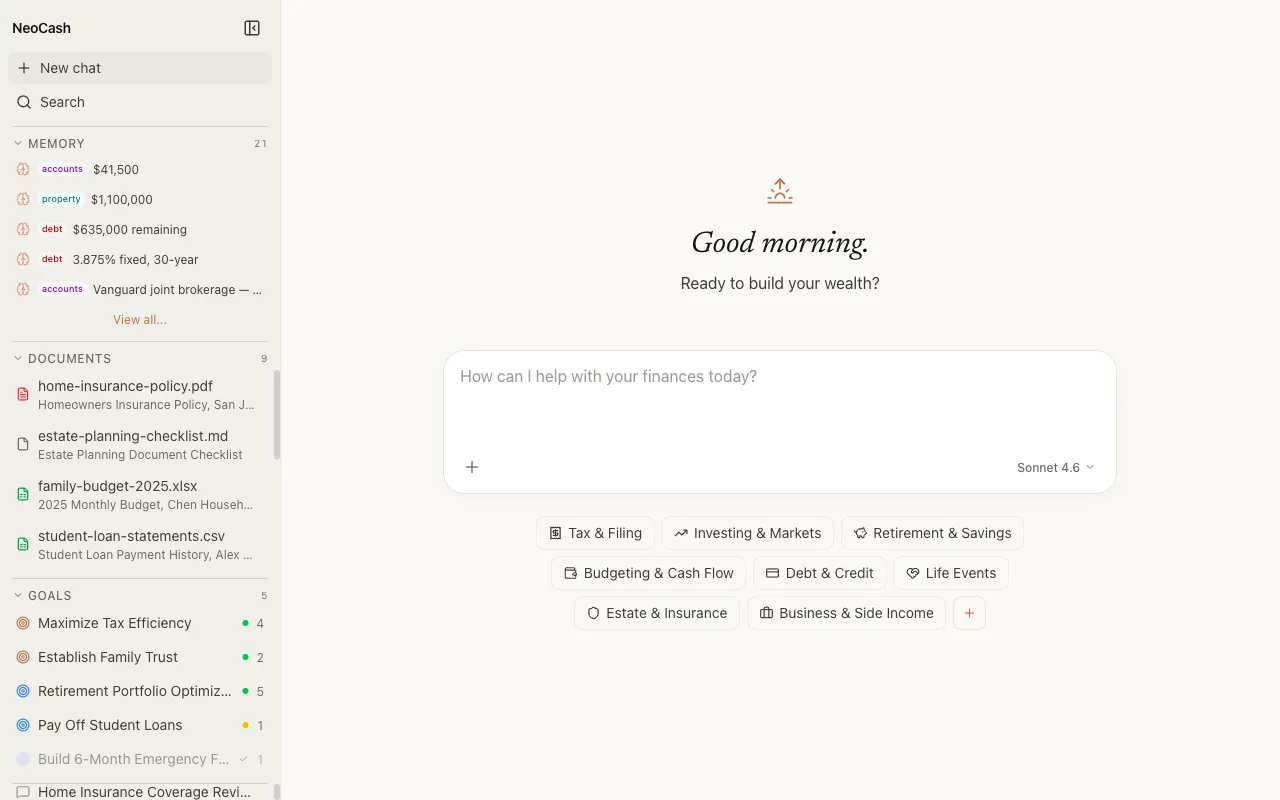
NeoCash organizes its interface around a sidebar-plus-main-panel layout. The sidebar gives you quick access to all your data — conversations, goals, memories, and documents — while the main panel adapts to show the chat, dashboards, or detail views depending on what you select.
This tour covers every major interface element so you know where to find things and how the pieces connect.
The Sidebar
The sidebar is the primary navigation element. It sits on the left side of the screen and is always accessible. It is divided into several sections.
Conversations List
At the top of the sidebar, you will find your conversation history. Each entry shows:
- A generated title based on the conversation content.
- A timestamp indicating when the conversation was last active.
- A short preview of the most recent messages.
Click any conversation to load it in the main chat area. The most recent conversations appear first.
Goals List
Below conversations, the goals section lists every financial goal the AI has created from your chats. Each goal entry displays:
- The goal title (for example, “Emergency Fund” or “House Down Payment”).
- The goal category it belongs to (one of the eight financial categories).
- A brief status indicator showing progress.
Clicking a goal opens its dedicated dashboard in the main panel.
Memory Section
The memory section shows facts and decisions the AI has stored from your conversations. Memories are organized across nine categories:
- Income and Employment — Salary, job details, income sources.
- Expenses and Budget — Monthly spending, recurring bills, budget targets.
- Assets and Net Worth — Bank accounts, investments, property values.
- Debts and Liabilities — Loans, credit cards, outstanding balances.
- Tax Situation — Filing status, deductions, tax bracket details.
- Insurance and Benefits — Health, life, disability coverage.
- Family and Dependents — Household members, education needs, care obligations.
- Risk Tolerance and Preferences — Investment style, comfort with volatility, ethical preferences.
- Life Events and Timeline — Planned retirement, upcoming purchases, career changes.
Each memory entry shows the stored fact or decision along with the conversation it originated from. This gives you full transparency into what the AI remembers about your financial life.
Tip: Review Your Memories
Periodically check the memory section to make sure the AI’s understanding of your situation is accurate. If something has changed — a raise, a paid-off debt, a new dependent — mention it in your next conversation and the AI will update its records.
Documents List
The documents section shows files you have uploaded to NeoCash. Supported formats include:
- PDF — Tax returns, account statements, insurance policies.
- Word documents — Financial plans, letters, notes.
- Excel spreadsheets — Budgets, transaction histories, projections.
Each document entry shows the filename, upload date, and file type. Documents are stored locally in IndexedDB alongside all your other data.
The Chat Area
The main panel defaults to the chat interface, which is where most of your interaction with NeoCash happens.
Message Thread
The message thread shows the full history of your current conversation. Your messages appear on one side, and the AI’s responses appear on the other. The thread scrolls naturally, with the most recent messages at the bottom.
Tool Call Indicators
When the AI takes a structured action — creating a goal, storing a memory, generating action items — a tool call block appears inline in the conversation. These blocks show:
- The name of the tool that was invoked.
- A summary of the input parameters (what data was created or modified).
- The result of the operation.
Tool calls are collapsible so they do not clutter the conversation flow, but you can expand any of them to see the full details.
Agent Chips
NeoCash includes five specialist AI agents that handle different aspects of financial planning. When an agent is active in the conversation, an agent chip appears near the top of the chat area showing:
- The agent’s name and specialty.
- A visual indicator that the agent is contributing to the current response.
The five agents cover distinct domains, and the system automatically routes parts of your question to the most relevant specialist. You do not need to manually select an agent.
Tip: Watch for Agent Handoffs
If your question spans multiple domains (for example, “How does paying off my student loans affect my retirement timeline?”), you may see multiple agent chips activate. This is the cross-pollination feature at work — agents share signals to give you a more holistic answer.
The Model Selector
At the top of the chat area, a dropdown lets you choose which AI model powers your conversation. This gives you control over the trade-off between response speed and depth of reasoning.
Different models may vary in how they handle extended thinking, complex calculations, and nuanced financial analysis. The default selection works well for most conversations, but you can switch models at any time without losing your conversation history.
The New Chat Button
Located prominently in the sidebar, the New Chat button starts a fresh conversation. Use it when you want to:
- Explore a completely different financial topic.
- Start a focused session on a specific goal.
- Keep your conversation threads organized by topic.
Each new chat begins with the greeting screen and category tiles, but the AI still has access to your stored memories from previous conversations. This means it can reference facts you have shared before without you needing to repeat them.
Goal Dashboards
When you click a goal in the sidebar, the main panel switches from the chat view to a goal dashboard. Each dashboard includes:
Metrics Panel
A summary of key numbers related to the goal — target amount, current progress, projected completion date, monthly contribution needed, and percentage complete.
Action Items
A checklist of specific steps the AI has recommended for this goal. Each action item includes a description and can be marked as complete. New action items may be added as you continue chatting about the goal.
Activity Timeline
A chronological log of changes to the goal, including when it was created, when metrics were updated, and which conversations contributed to it.
Cross-Pollination Signals
If this goal is connected to other goals, the dashboard shows cross-pollination signals. These are insights the AI has identified about how progress on one goal affects another. For example, paying down debt faster might free up cash flow that accelerates your investment timeline.
Document Viewer
Clicking a document in the sidebar opens it in the main panel. The viewer displays the extracted content from your uploaded file, allowing you to review what the AI has access to. You can reference documents in your conversations by mentioning them, and the AI will pull relevant data from the uploaded content.
Keyboard Shortcuts and Quick Actions
A few shortcuts help you move through the interface efficiently:
- Enter in the message input sends your message.
- Shift + Enter adds a new line without sending.
- Clicking the sidebar section headers collapses or expands that section, letting you focus on what matters.
Privacy Indicator
Throughout the interface, the design reinforces that your data is local. There are no sharing buttons, no collaboration features, and no sync indicators. Everything you see in NeoCash exists solely on your device in your browser’s IndexedDB storage.
Next Steps
Now that you are familiar with the interface, start putting it to use. Return to the chat, pick a financial goal that matters to you, and let the AI help you build a plan. The more context you share over time, the more personalized and valuable the experience becomes.