File Uploads
Bringing Your Documents Into Chat
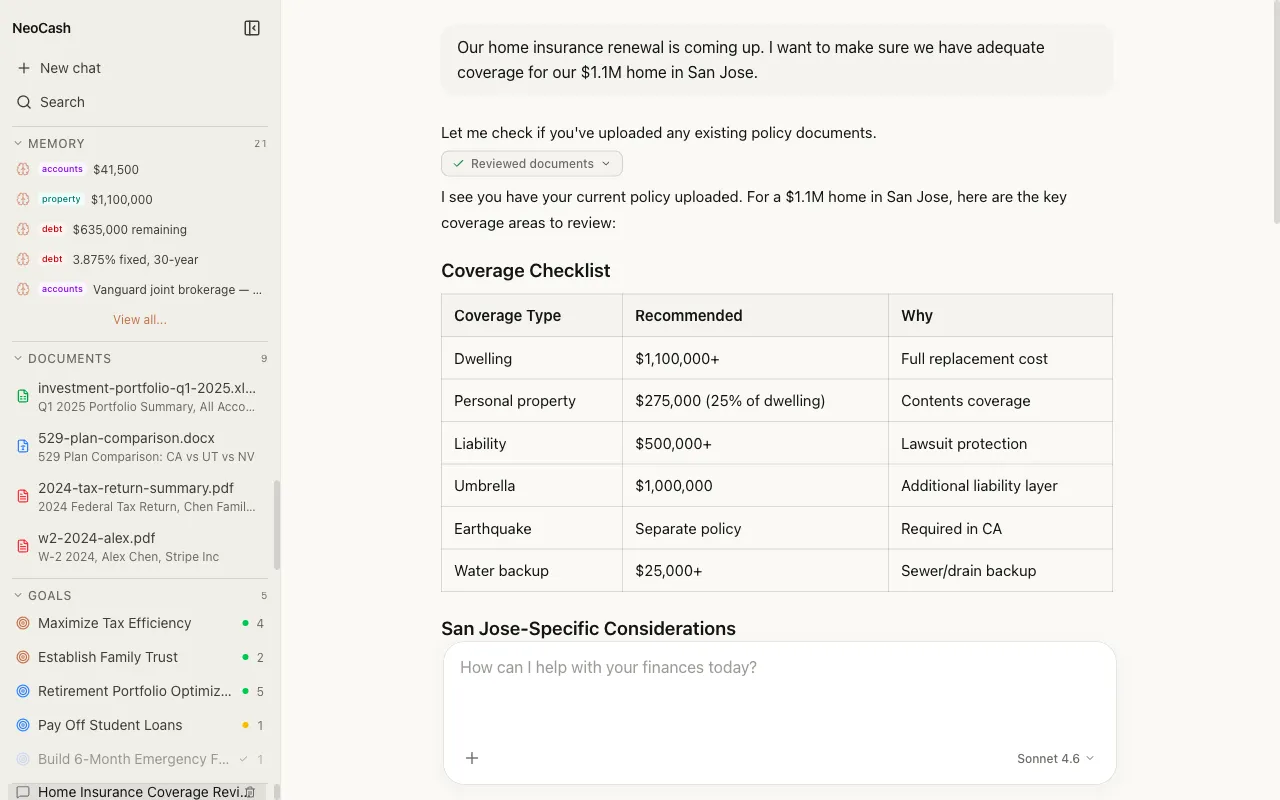
NeoCash lets you upload financial documents directly into a conversation for analysis. Rather than manually typing figures from a bank statement or investment report, you can attach the file and let the AI extract, summarize, and reason about the contents.
This turns chat into a powerful document analysis tool. Ask questions about an uploaded tax return, compare figures across multiple statements, or have the AI flag anomalies in your spending data — all within the same conversational interface you use for everything else.
Supported File Formats
NeoCash supports the most common document formats used in personal finance:
PDF Documents
- Bank statements
- Tax returns and W-2 forms
- Investment account statements
- Loan agreements and amortization schedules
- Insurance policy documents
- Financial planning reports
Microsoft Word (.docx)
- Financial plans and proposals
- Advisory letters and recommendations
- Estate planning documents
- Notes and financial summaries
Microsoft Excel (.xlsx)
- Budget spreadsheets
- Investment tracking sheets
- Tax preparation workbooks
- Net worth calculations
- Cash flow projections
Each format is processed with format-aware extraction, meaning the AI understands tables, headers, and structured data within these documents, not just raw text.
Uploading a File
To upload a document, use the attachment button next to the message input. You can also drag and drop a file directly into the chat area. The upload process works as follows:
- Select or drop your file — The file is loaded into the browser locally
- Metadata extraction — NeoCash extracts key metadata including file name, size, page count, and creation date
- Content processing — The document content is parsed and prepared for analysis
- Confirmation — A file card appears in the chat showing the document name and key metadata
- Ready for analysis — Type your question or instruction alongside the uploaded file
You can upload a file on its own or include it with a message. For example, you might drop in a PDF and type “Summarize the key figures from this quarterly statement” in the same message.
Metadata Extraction
When a document is uploaded, NeoCash automatically extracts and displays useful metadata:
- File name and type — Identifies the document
- File size — Helps you verify you uploaded the right file
- Page count — For PDFs and Word documents
- Creation and modification dates — Useful for tracking document versions
- Sheet names — For Excel files with multiple worksheets
This metadata appears in a compact card within the chat, giving you a quick confirmation that the correct document was processed.
Analyzing Documents in Context
Once uploaded, the document becomes part of the conversation context. The AI can reference specific figures, tables, and sections from the document in its responses. This enables several powerful workflows:
Single Document Analysis
Upload a document and ask targeted questions:
- “What was my total income on this tax return?”
- “Summarize the fee structure from this investment agreement”
- “List all transactions over $500 from this bank statement”
Multi-Document Comparison
Upload multiple documents in the same conversation to compare them:
- “Compare my Q1 and Q2 investment statements — what changed?”
- “How does my actual spending in this bank statement compare to the budget in this spreadsheet?”
- “Cross-reference the income on my W-2 with the deposits in my bank statement”
Document-Informed Planning
Use documents as the foundation for financial planning:
- Upload your current portfolio statement, then ask “Given these holdings, how should I rebalance for retirement in 15 years?”
- Upload your tax return and ask “What deductions might I be missing based on my situation?”
Document References in Chat
When the AI cites information from an uploaded document, it references the specific source. You will see inline references that indicate which document and section a particular figure or detail came from. This makes it easy to verify the AI’s analysis against the original document.
For Excel files, the AI can reference specific sheets and cell ranges. For PDFs, it references page numbers and sections. This traceability is important for financial analysis where accuracy matters.
Privacy and Document Handling
Uploaded documents are processed locally in your browser. The document content is sent to the Claude API only as part of the conversation context needed to generate a response. Documents are not stored on external servers or retained after processing.
Your files remain under your control at all times. When you close a conversation or clear your data, the document references are removed from your local storage.
Tips for Best Results
- Upload clear, well-formatted documents — Scanned PDFs with good resolution and properly formatted Excel sheets yield the best extraction results
- Be specific in your questions — Instead of “analyze this document,” ask for specific figures or comparisons
- One document per topic — If you have multiple documents on different topics, consider using separate conversations for clarity
- Check extracted figures — While the AI is highly accurate, always verify critical financial figures against the original document, especially for tax or legal purposes